

Download Spotify Search – Fast Spotify Music Finder for Firefox
Overview
Spotify Search is a lightweight Firefox add‑on that turns the browser’s right‑click menu into a one‑click gateway to Spotify’s massive music catalog. As Spotify continues its global expansion, millions of users are looking for smarter ways to discover songs, albums, and artists while they browse the web. Spotify Search meets that need by letting you highlight any piece of text that mentions a musical act, a track title, or an album name, then instantly launch a Spotify search in a new tab.
No more juggling between the web page and the Spotify desktop or mobile app—just a seamless, context‑aware music lookup that feels native to Firefox. The extension is free, secure, and regularly updated to stay compatible with the latest Firefox releases, including Firefox 4 and newer. Whether you’re reading a music blog, scrolling through a social‑media post, or researching a soundtrack for a video project, Spotify Search puts the power of Spotify’s search engine directly at your fingertips.
Key Features, Compatibility & Core Benefits
- Context‑aware right‑click search for songs, artists, and albums.
- One‑click launch of Spotify’s web player or desktop client.
- Free and open‑source, with regular security updates.
- Supports both Spotify Free and Premium accounts.
- Works on Windows, macOS, Linux, and any platform that runs Firefox.
- Lightweight footprint – less than 100 KB after installation.
- Customizable search filters (track, artist, album).
- Automatic detection of highlighted text without extra typing.
Compatibility – Spotify Search is built for the modern web and integrates with Firefox 4 and later, which includes Firefox Quantum, Firefox ESR, and the latest release channels (Beta, Developer, Nightly). The add‑on leverages the WebExtensions API, meaning it runs on Windows 10/11, macOS Catalina and newer, as well as popular Linux distributions such as Ubuntu, Fedora, and Debian. Because it operates entirely within the browser, there is no need for additional software installations or native plugins, keeping the user experience clean and secure.
Why it matters – In a world where users consume media across multiple tabs and devices, a tool that bridges the gap between reading and listening can significantly improve productivity and enjoyment. Spotify Search eliminates the friction of copying and pasting artist names into the Spotify search bar. Instead, the extension reads the highlighted text, decides whether it looks like a track, artist, or album, and routes you to the exact match (or closest results) on Spotify’s platform. This reduces the time spent searching, encourages music discovery, and enhances the overall value of both Firefox and Spotify as complementary services.
The extension also respects privacy. All text processing happens locally in your browser; the only data sent to Spotify is the search query itself, which is identical to what you would type manually. No personal browsing history is logged or transmitted to third‑party servers, making Spotify Search a secure option for privacy‑conscious users.
Installation, Usage Instructions, Pros & Cons, and Frequently Asked Questions
Installation & First‑time Setup
- Open Firefox and navigate to the official Mozilla Add‑ons site.
- Search for “Spotify Search” or follow the direct link provided by the developer.
- Click the “Add to Firefox” button and confirm any permission prompts.
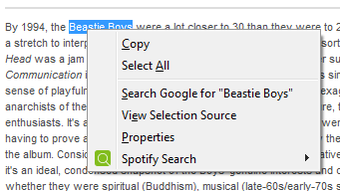
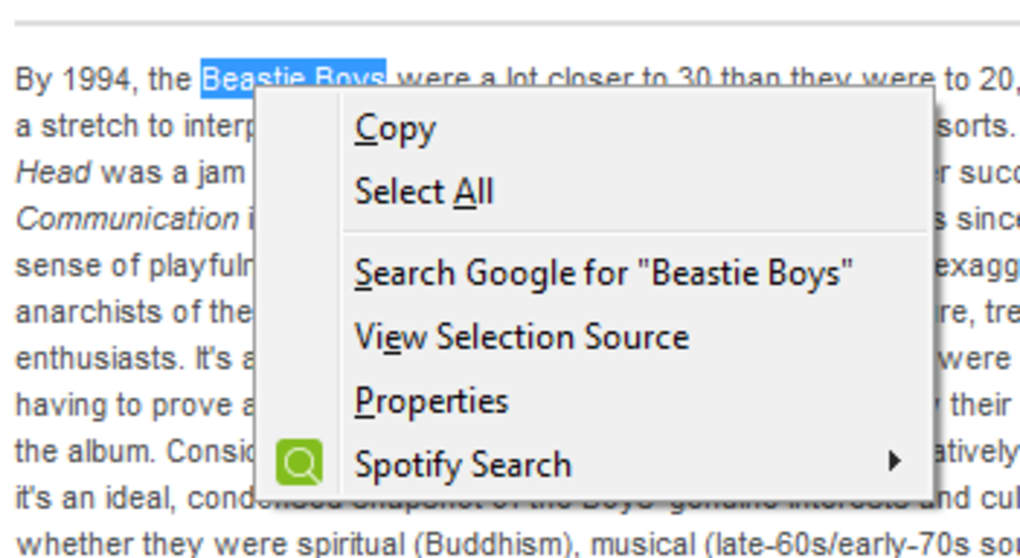
- Once installed, a small Spotify icon appears in the Firefox toolbar, and the right‑click menu gains a new entry labeled “Spotify Search”.
- No additional configuration is required, but you can access the options page (via Tools → Add‑ons → Spotify Search → Preferences) to choose default search types or to enable/disable the toolbar icon.
How to Use the Extension
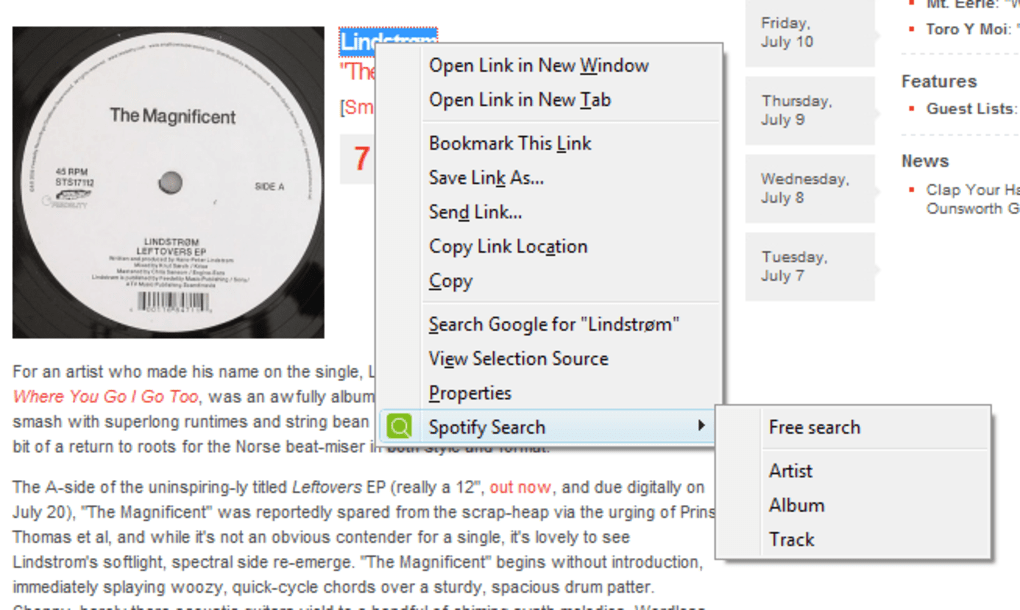
Using Spotify Search is intuitive. While browsing a web page, simply highlight the name of a song, artist, or album you’re interested in. Right‑click the highlighted text and select “Spotify Search”.
A submenu will appear offering three choices: “Search Track”, “Search Artist”, and “Search Album”. Choose the appropriate option, and a new tab opens with Spotify’s search results. If you’re logged into Spotify, you can instantly start playback; otherwise, you’ll be prompted to log in or create a free account.
The extension also works on any page that allows text selection, including PDFs opened in Firefox, online news articles, and social‑media feeds.
Pros & Cons
- Pros
- Instant, context‑aware music lookup saves time.
- Fully free with no hidden fees or subscriptions.
- Lightweight and does not slow down the browser.
- Works across all major operating systems that support Firefox.
- Privacy‑first design – no data collection beyond the search query.
- Regular updates keep it compatible with new Firefox releases.
- Cons
- Requires an active internet connection and a Spotify account.
- Only available for Firefox; Chrome and Edge users need alternative solutions.
- Search accuracy depends on the exactness of the highlighted text; ambiguous names may return mixed results.
- Does not support offline playback directly from the extension.
Frequently Asked Questions
Is Spotify Search compatible with the Spotify mobile app?
No. The extension launches the Spotify web player or desktop client in a new browser tab. It does not interact directly with the mobile app, but you can use Spotify Connect to transfer playback to any device logged into the same account.
Do I need a Spotify Premium subscription to use the add‑on?
No. Both free and Premium users can search and play tracks, though free users will encounter occasional ads and have limited skip controls, just as they would on the regular Spotify service.
Can I customize the right‑click menu order?
Yes. In the add‑on’s options page you can enable or disable the individual search types (track, artist, album) and set which one appears as the default action when you select “Spotify Search”.
Is the extension safe from malware?
Absolutely. Spotify Search is hosted on the official Mozilla Add‑ons marketplace, undergoes Mozilla’s security review process, and does not request any unnecessary permissions beyond opening a new tab and reading selected text.
What should I do if the add‑on stops working after a Firefox update?
First, check the add‑on’s page for an updated version. If none is available, you can report the issue via the “Feedback” link on the add‑on’s listing. The developer typically releases patches within a few days of major Firefox releases.
Review Summary
Rating: 4.5/5
Spotify Search delivers a frictionless bridge between web browsing and music discovery. Its simplicity, speed, and zero‑cost model make it a must‑have for Firefox users who love Spotify. Minor drawbacks—like lack of Chrome support and occasional ambiguous search results—are outweighed by the convenience of a context‑aware music lookup directly from the right‑click menu.
Conclusion & Call to Action
If you spend any amount of time reading articles, forums, or social posts about music, Spotify Search is the tool that turns every highlighted phrase into an instant listening opportunity. The add‑on’s free price tag, tiny footprint, and privacy‑first design align perfectly with the expectations of modern Firefox users. By installing Spotify Search, you not only speed up your music discovery workflow but also enhance the overall value you get from both Firefox and Spotify.
Ready to try it? USD 0.00 – Download Spotify Search now and start listening without ever leaving your browser.







